 SkinLogs
Scan
Taking and saving a photo
The starting point for everything else: a photo, saved privately, with as little friction as possible.
Camera or upload
Tap Camera and SkinLogs opens your phone's own camera app rather than a preview built into SkinLogs, so you get your phone's normal focus, flash, and framing controls. Tap Upload photo instead to pick something already in your library. Either way, you end up on the same preview screen before anything is saved.
An optional note
Before saving, there's a single-line field, "Add context to save with this scan", entirely optional. Nothing else is asked. There is no form to fill in about symptoms or severity here; that lives in Diary instead.
What happens when you save
- The photo is resized and compressed for storage. That resized copy is the only one kept, and it's the same file used everywhere the photo appears later: your history, Compare, and the full scan view.
- If you picked a closest skin tone match during setup, a small brightness and contrast adjustment is applied so exposure looks more consistent from scan to scan. It's a fixed lookup table, not anything that changes what the photo shows.
- A photo you upload is automatically checked for obvious blur or low light, so you can retake it right away instead of finding out later.
- Everything happens on your device. Saving a scan never sends it anywhere.
Marking up a photo afterward
From a saved scan, "Annotate photo" opens a plain freehand drawing tool: pick one of five colors and draw directly on the photo to point something out for your own reference. There's no shape tool and nothing is detected or suggested automatically. Reopening annotation always starts from the original photo, so your notes never stack on top of each other.
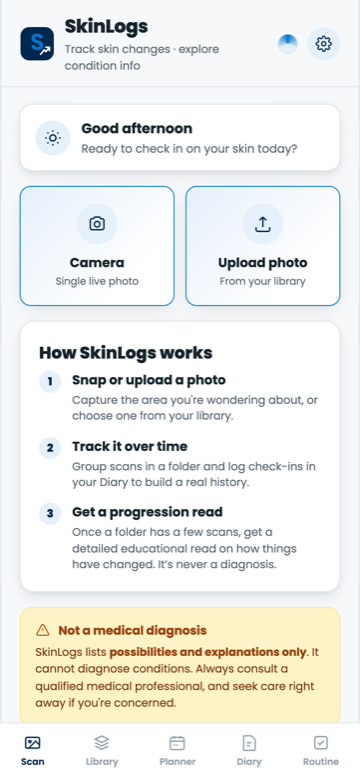
The Scan tab: camera, upload, and a quick reminder of how the app fits together.
Library
Folders, history, and finding things later
Every scan lives in your history whether or not you file it anywhere. Folders are for grouping scans of the same spot together.
What a folder actually is
Just a name and, if you want, a general location like "left forearm". Any scan can be assigned to one folder. There's no limit on how many folders you keep.
Rescan reminders
Each folder can have a reminder set to weekly, every two weeks, monthly, or every three months, or none at all. This schedules a real notification on your device at that interval, not just a badge inside the app.
Folder suggestions
When you save a new scan without saying which folder it belongs to, SkinLogs compares its photo to your existing scans by visual similarity and, if one looks like a close match, offers to file the new scan alongside it. You can accept the suggestion or dismiss it and file it yourself; it's a starting suggestion, never automatic.
Search
A search box over your folder names and locations, and a separate one over your full scan history, both plain text matching, nothing fuzzy or AI-assisted.
Progress report
From any folder, generate a PDF that pulls together its photos with a short summary: how often you've been scanning and the typical gap between scans, your treatment completion rate over the last 90 days, and any standout patterns from your Diary entries for that area. Every number in it is arithmetic over your own local data. Nothing about it is AI-generated or sent anywhere to produce.
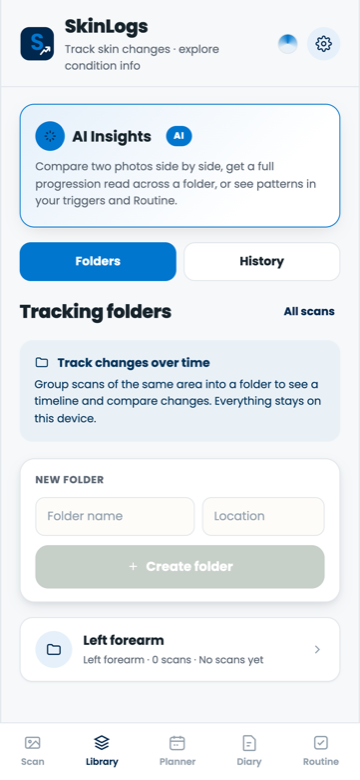
Folders, each with a photo count, reminder schedule, and search built in.
Compare
Seeing two photos side by side
A manual tool for your own eyes. SkinLogs never analyzes the two photos or tells you what changed.
Choosing your two photos
Tap either photo row and a screen of thumbnails opens, so you can recognize the scan you want by sight instead of guessing from a date. The scan already chosen in the other slot is grayed out, since the same photo can't fill both sides. A back button always lets you close the picker without being forced to choose.
Slider or overlay
- Slider: drag a handle across the screen to reveal more or less of one photo underneath the other.
- Overlay: both photos sit on top of each other, and a slider adjusts how much of the earlier one shows through, a manual opacity blend.
Both modes are pure visual comparison. There's no image analysis running behind either one, no highlighting of "what changed", and no verdict given. You decide what you're seeing.
Exporting
Save the comparison you've set up as a single image, useful for keeping or sharing outside the app.
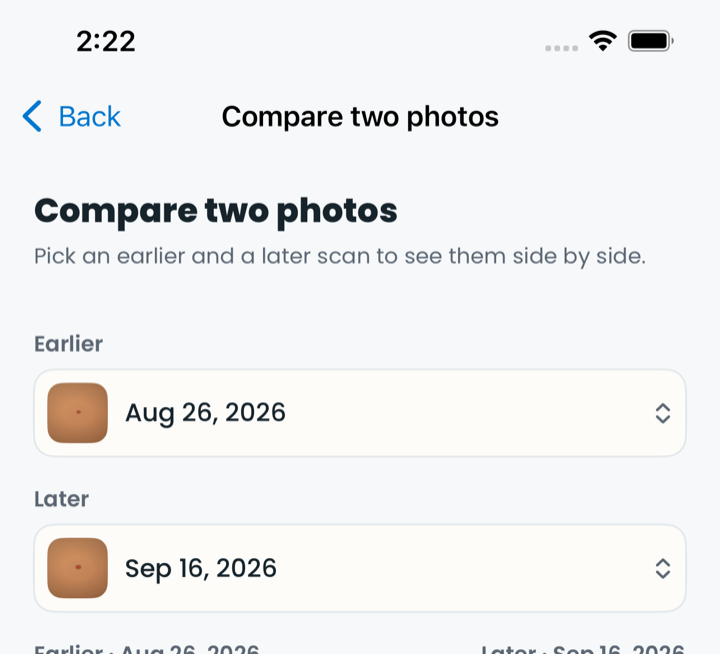
Choosing the earlier and later scan to compare.
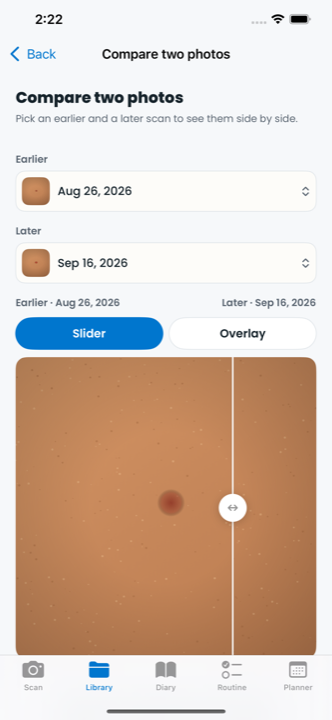
Slider mode, mid-drag.
Diary
A daily check-in, area by area
Log how each spot feels today, and let your own history show you patterns over time.
The body map check-in
Tap any spot on the body diagram to mark it as affected today. For each spot marked, log roughly how much of that area seems affected, how severe it feels, and how itchy it is, then tag any treatments you used there. Marking a spot again tomorrow builds a history for that exact location, separate from every other spot you're tracking.
Triggers and what helped
A fixed list of common triggers (stress, weather, a new product, and more) and things that helped (moisturizer, a cool compress, and so on), each tappable, plus room to add your own custom tags. These get logged alongside that day's severity so patterns can surface later.
Patterns and Routine impact
Once you've logged enough check-ins, both with and without a given tag, a Patterns card shows the average severity on days with that tag versus without it, so you can see whether it seems to line up with better or worse days. A separate card does the same for Routine adherence: full-adherence days compared with partial-adherence days. Both are plain averages over your own logged entries, shown with a note that they're not a statistical or medical conclusion, and never a diagnosis.
Voice memos and search
Attach a short voice memo to any day's check-in and play it back later. Past entries are searchable by their notes, and filterable by tag, so a specific day is easy to find again.
A weekly check-in, if you want it
An optional, separate quality-of-life section asks a handful of personal questions about how the week affected you. It's collapsed by default, meant to be filled in about once a week rather than daily, and isn't modeled on or scored like any licensed clinical instrument.
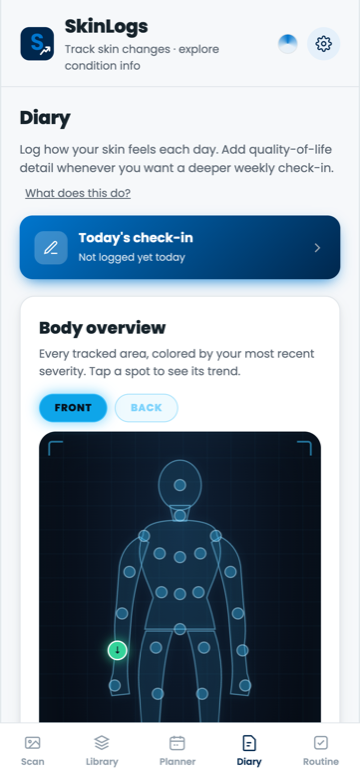
Body overview, colored by your latest entry per spot.
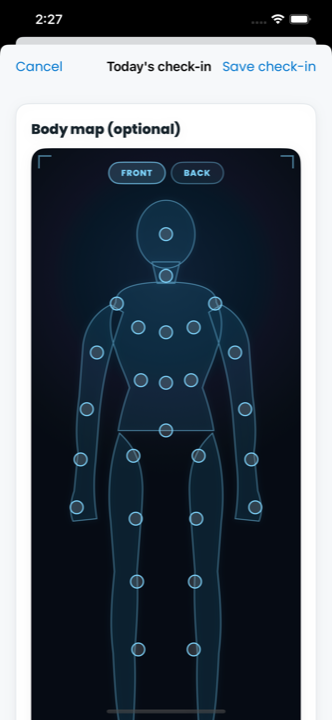
Marking exactly where, on a simple body map.
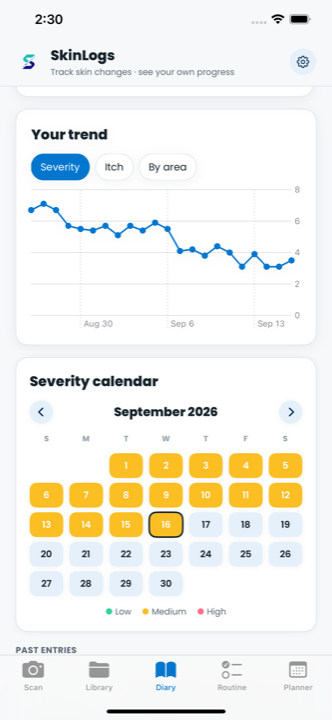
Your severity trend, built from your own logged entries.
Routine
A checklist for what you're using, or testing out
Low-friction by design, since sticking with a routine usually comes down to how easy it is, not remembering. Works the same whether it's a long-standing routine or a new product you're trying out for the first time.
Adding a treatment
Give it a name, how often you use it, and any notes. A few common starting categories, like moisturizer or sunscreen, are offered as shortcuts, or type your own from scratch. Tag it to whichever body areas it applies to so it's easy to see at a glance where it's used.
Reminders, on the days you actually want them
Set a daily reminder time, and if a treatment isn't a daily thing, restrict it to specific days of the week. Each selected day schedules its own real device notification.
Today's checklist
Every active treatment shows up with a one-tap checkbox and a 7-day history strip, so you can see at a glance whether you've been keeping up. A running completion rate covers the last 90 days.
Flagging an issue, pausing, and history
Flag something right from the checklist (too greasy, stings, no visible effect, and a few others), kept as a record on that day's log. Pausing a treatment keeps its history intact without counting the paused days as missed.
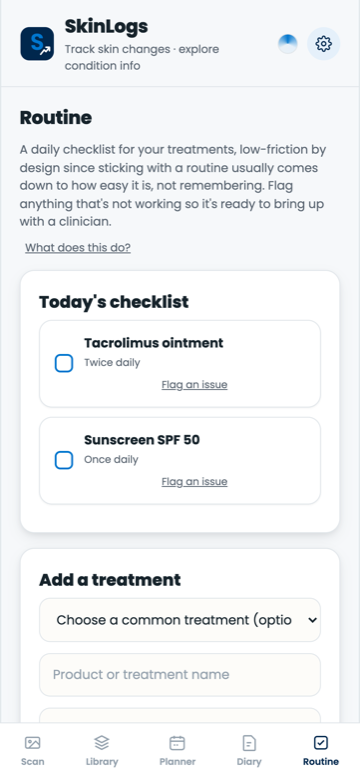
Today's checklist, with a 7-day history strip per treatment.
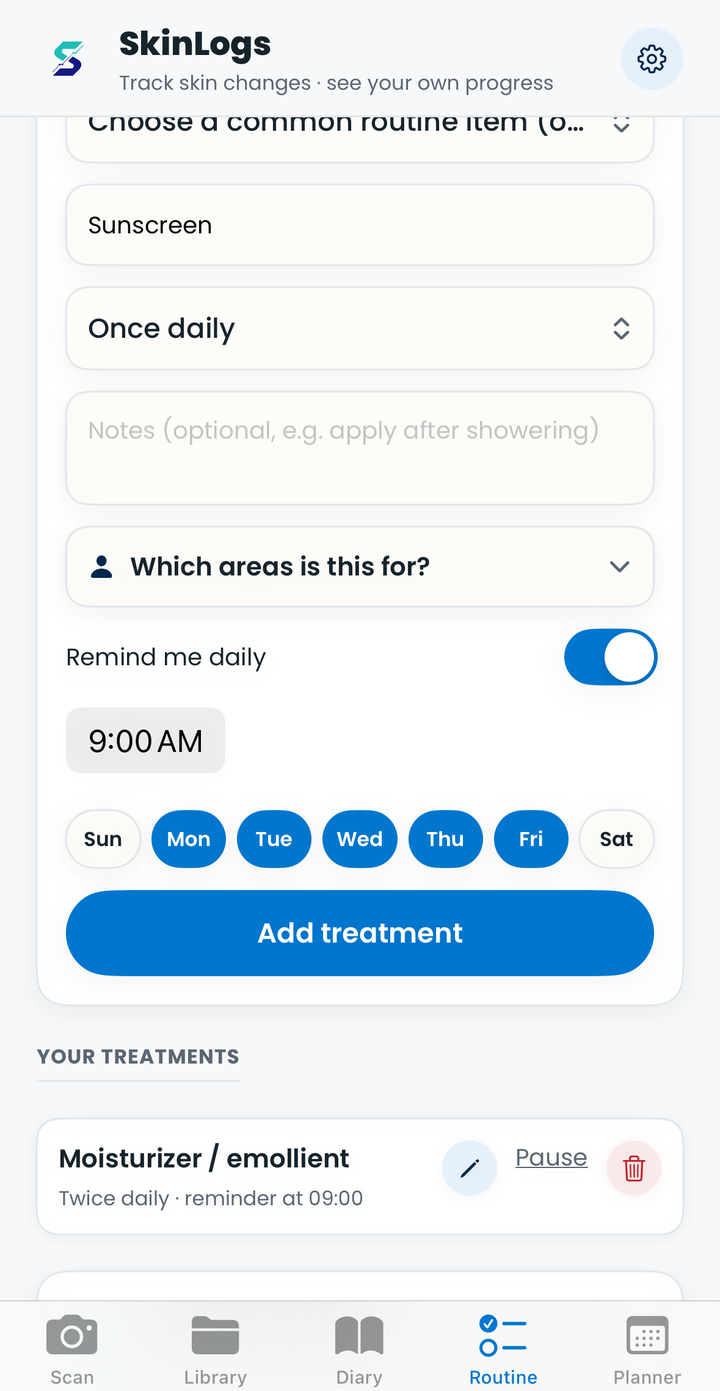
Restricting a reminder to specific weekdays.
Routine Pattern Finder
Step by step: seeing what's actually helping
A deeper, product-specific layer on top of Diary and Routine: instead of a single overall adherence number, it looks area by area, product by product, entirely from what you've already logged.
1. Tag a product to the area it's for
In Routine, tag a treatment to whichever body area it's used on. This is the only setup step, everything after this happens automatically from your normal Diary and Routine logging.
2. Keep logging like you already do
Log your daily Diary check-in for that area (severity and whatever else you track) and check the product off in Routine on the days you use it. No extra step, no separate form, just your existing habit.
3. It compares "with it" days against "without it" days
Once you've logged at least 5 diary days for that area, with some days you checked the product off and some you didn't, Routine Pattern Finder works out your average severity on each side and shows the gap. That's the entire calculation: an average, compared to another average, over your own numbers.
4. A confidence label, so you know how much to trust it
- Early signal: a small gap, from a small number of days. Worth noticing, not worth acting on yet.
- Worth a look: a clearer gap, with a bit more history behind it.
- Consistent pattern: the strongest label, needing the most days and the widest gap before it's shown.
Nothing is shown at all until there's a real sample on both sides, no pattern gets forced out of thin data.
5. Photo evidence, when you have it
If that area has a tracking folder with a couple of scans in it, Routine Pattern Finder pulls the photo closest to your best day and the photo closest to your worst day and shows them side by side, so it's not just a number, you can actually see it.
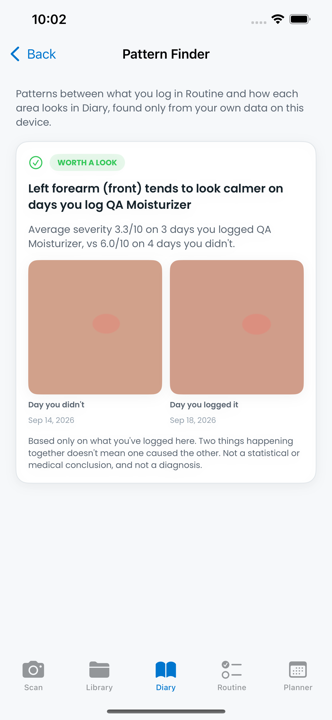
A pattern found for one area and one product, with the days it's based on.
Planner
A running view of your tracking activity
One calendar tying scans, reminders, and planned checks together, plus a few simple stats.
The calendar
A month view marks which days had a scan, which have a folder reminder due, and which have a check you've planned ahead, all as small dots you can tap into.
Planning a check
Plan a one-time or recurring check for any folder, with your own note and time. Recurring checks keep scheduling themselves automatically so you never have to re-plan the next one by hand.
Stats, streaks, and milestones
Four running numbers: total scans, folders tracked, reminders due, and your current daily logging streak. Milestones celebrate things like your first month of tracking or reaching a number of saved scans, pure counting and date math, never a reflection of how your skin is actually doing.
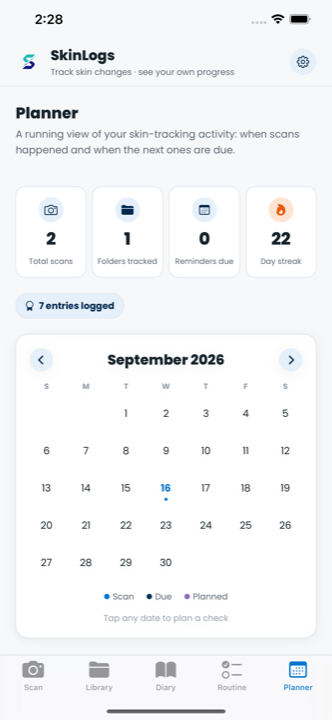
Stats, milestones, and a calendar of scans, due dates, and planned checks.
Privacy & your data
What stays on your device, and what you control
Nothing described above sends a photo, note, or log anywhere. Here's what that means in practice.
- Photos, folders, diary entries, and treatment logs are all stored on your device, not on a SkinLogs server.
- Delete everything with one tap in Settings, instantly and without a grace period.
- Export a full backup, including your photos and voice memos, as a file you control and can move to a new device yourself.
- Delete your account entirely from Settings whenever you want, a self-service action that doesn't require contacting anyone.
Free trial & subscription
What's free, what needs a subscription, and when
- Always free: Scan, your Library (folders and history), and Planner. There's no trial clock on these; they stay free for as long as you use SkinLogs.
- Free for 30 days, then subscription-only: Diary, Routine, Compare, and Progress report. The 30 days start from when you create your account, not from whenever you first open one of these, so it can't be extended by waiting.
- Billing: a monthly plan is available now; a yearly plan is coming soon. Both are handled entirely through Google Play or the App Store, so SkinLogs never sees your payment details.
FAQ
Common questions
Does SkinLogs analyze or score my skin automatically?
No. Compare is a manual side-by-side tool, just your own eyes. There's no image analysis running behind it, no highlighting of what changed, and no automated score. SkinLogs is a wellness and organization app, not a medical device.
Is any of my data uploaded anywhere?
No. Photos, folders, diary entries, and treatment logs are all stored on your device, not on a SkinLogs server. Saving a scan never sends it anywhere.
What's free, and what needs a subscription?
Scan, your Library, and Planner are always free, with no trial clock. Diary, Routine, Compare, and Progress report are free for your first 30 days from account creation, then require a subscription.
Can I delete my data, or export it?
Yes. Delete everything with one tap in Settings, instantly and without a grace period. You can also export a full backup, including your photos and voice memos, as a file you control.
How does Routine Pattern Finder decide what to show me?
It compares your average logged severity for one area on days you used a specific product against days you didn't, and only shows a result once there's a real sample on both sides. Every result is labeled Early signal, Worth a look, or Consistent pattern, and it's always a correlation over your own logged days, never a diagnosis.
Is SkinLogs a medical device?
No. SkinLogs is an educational tool. It is not a medical device, does not diagnose, treat, cure, or prevent any medical condition, is not a health-monitoring tool, and does not replace professional medical advice. If you notice anything painful, bleeding, rapidly changing, or otherwise concerning, contact a licensed healthcare professional right away.
Does SkinLogs work on iPhone and Android?
SkinLogs is available now on Google Play. An iPhone version is finishing up App Store review and will follow shortly.
Not a medical device
SkinLogs is an educational tool. It is not a medical device, does not diagnose, treat, cure, or prevent any medical condition, is not a health-monitoring tool, and does not replace professional medical advice. If you notice anything painful, bleeding, rapidly changing, or otherwise concerning, contact a licensed healthcare professional right away.